
How Cloud Storage Works in 2026: A Complete Beginner’s Guide
Introduction
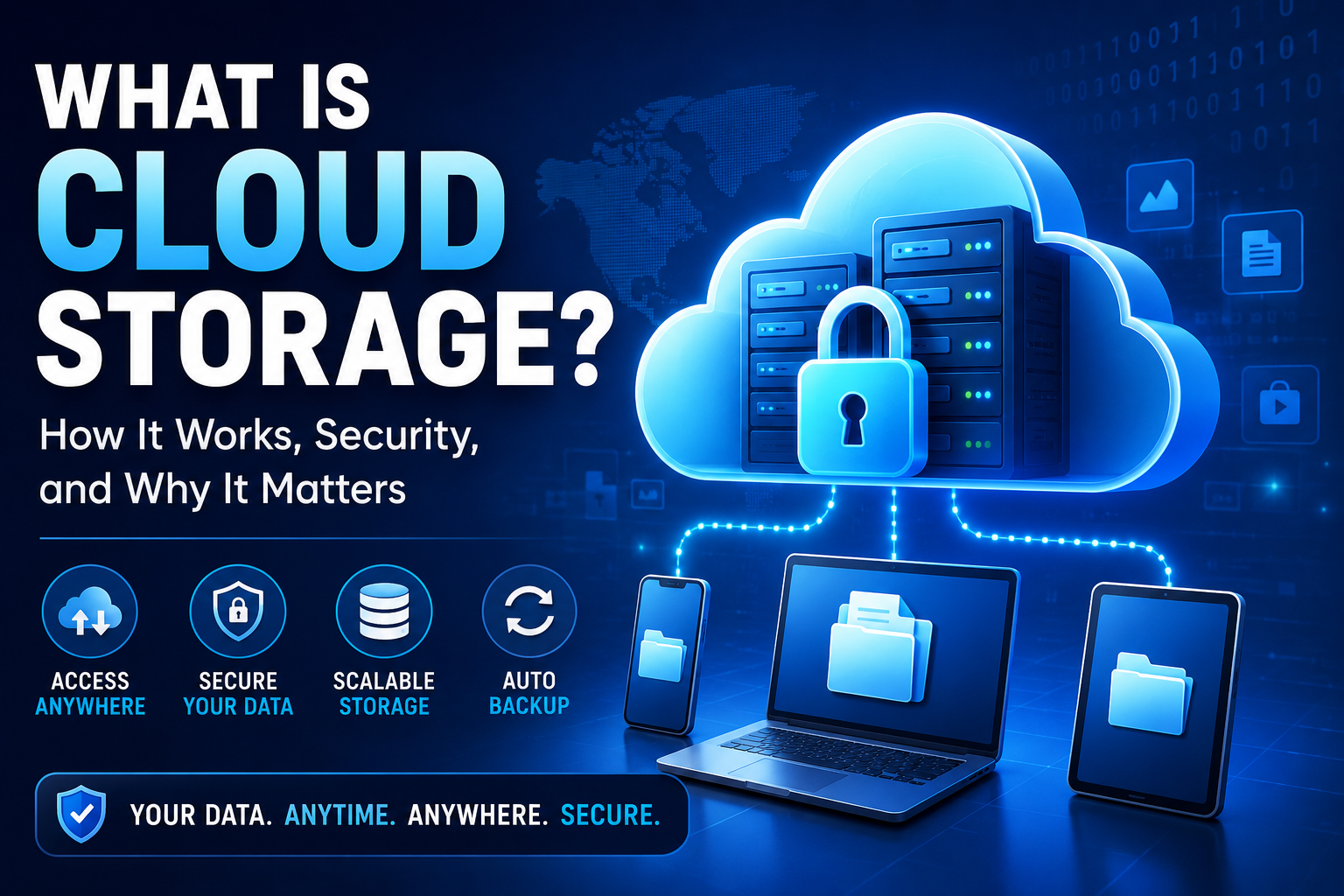
If you have ever uploaded a photo to Google Drive, saved a document to OneDrive, or backed up your phone to an online service, you have already used cloud storage. But how cloud storage works behind the scenes is less obvious.
Instead of keeping every file on your computer or phone, cloud storage allows your data to be stored on remote servers operated by a cloud provider. You can then access those files through an internet connection from compatible devices.
Understanding how cloud storage works can help you make better decisions about backups, privacy, security, storage limits, and file sharing. It also explains why your files can remain available even when your own device is lost or damaged.
This guide explains how cloud storage works, from uploading a file to retrieving it later, along with its main benefits, limitations, security features, and practical examples.
What Is Cloud Storage?
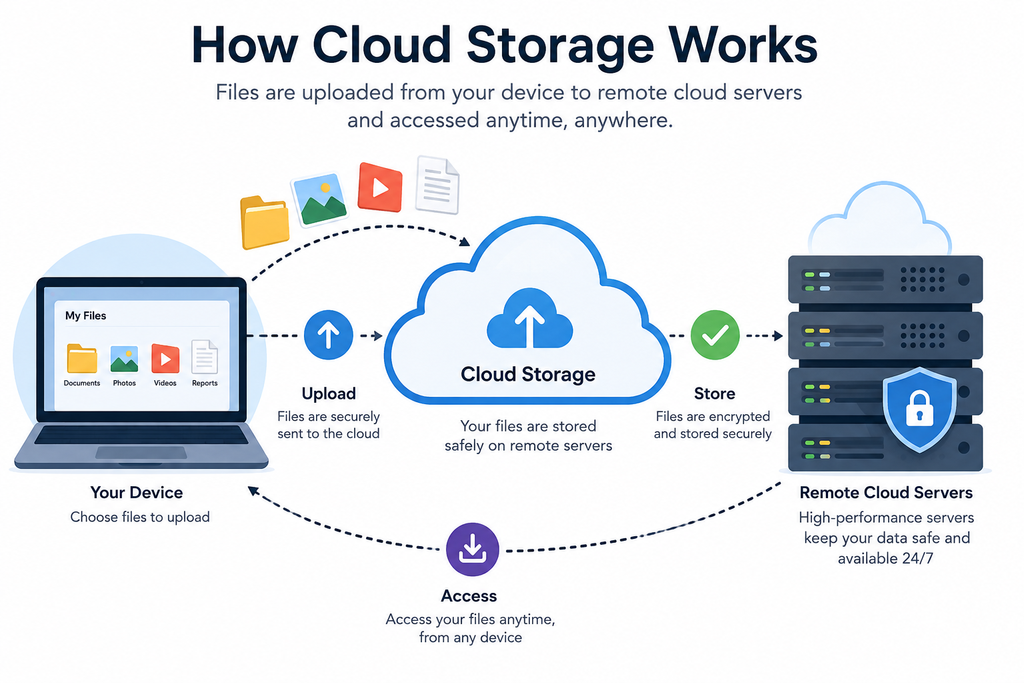
Cloud storage is a service that lets you save digital data on remote infrastructure operated by a cloud provider instead of relying only on local storage such as a phone, computer, USB drive, or external hard disk.
In many cloud platforms, data is stored as objects inside containers such as buckets. Each object can contain the actual data, metadata, and an identifier used to locate it. Google Cloud, for example, describes Cloud Storage as a managed service where users store objects inside buckets.
This basic model is important when explaining how cloud storage works. Your file is not simply placed into one invisible folder somewhere on the internet. The provider manages storage infrastructure, access controls, networking, security systems, and other components required to store and retrieve your data.
How Cloud Storage Works
So, how cloud storage works in practical terms depends on several connected steps.
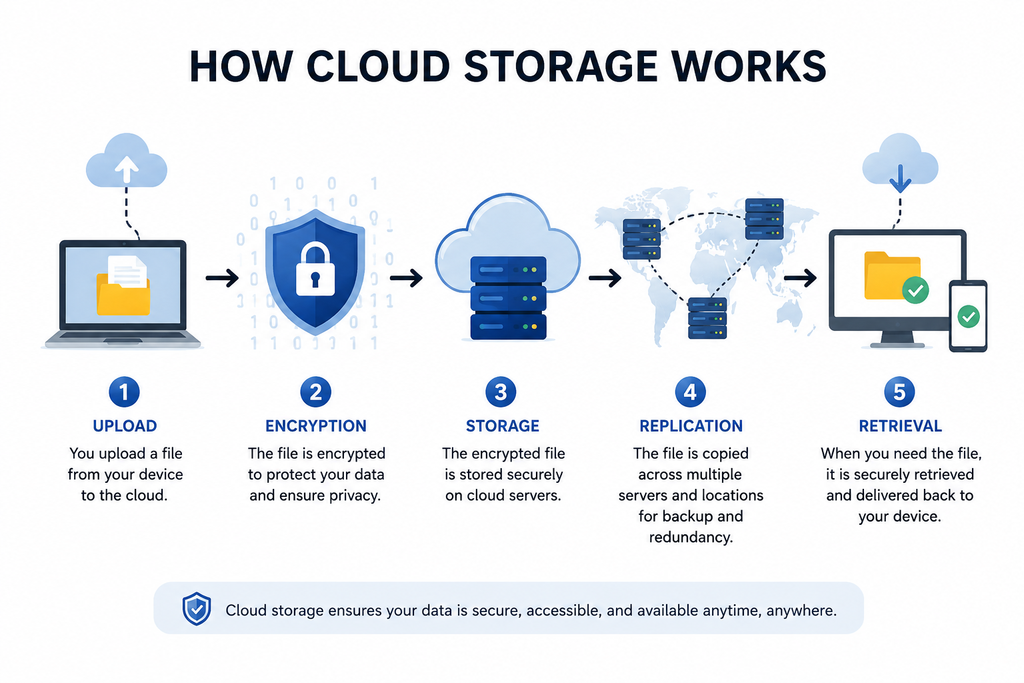
1. You Select or Create a File
The process begins when you create or choose a file. It could be:
- A photograph
- A video
- A PDF document
- A spreadsheet
- A backup
- A database
- An application file
The file initially exists on your local device.
2. Your Device Sends the File to the Cloud
When you click upload, your device communicates with the cloud provider through the internet.
The file is transferred to the provider’s storage infrastructure. During this process, authentication and permissions can determine whether your account is allowed to upload the data.
This is one of the most important parts of how cloud storage works because the cloud does not magically move the file. Your device sends data across a network to a remote storage service.
3. The Provider Stores the Data
After receiving your file, the cloud provider stores it using its storage architecture.
Object storage is widely used for large amounts of unstructured information such as images, audio, videos, backups, and documents. Each stored object can be associated with metadata and a unique identifier.
This architecture allows cloud storage systems to scale to extremely large amounts of data without requiring every customer to manage physical hardware.
4. The Data May Be Replicated
Another important part of how cloud storage works is redundancy.
Cloud providers can maintain multiple copies or replicas of data to improve durability and availability. Microsoft Azure, for example, offers redundancy options that can replicate data within a region or across geographically separate regions.
The exact number and location of copies depends on the service, storage class, region, and configuration. More redundancy can improve resilience, but it can also affect cost and architecture.
5. You Retrieve the File When Needed
When you open or download a cloud-stored file, your device sends a request to the cloud service.
The service verifies your permissions, locates the requested data, and sends it back over the network.
This explains another key element of how cloud storage works: your device often acts as the access point, while the cloud provider manages the underlying storage infrastructure.
How Cloud Storage Works With Synchronization
Synchronization is one reason cloud storage feels so convenient.
Suppose you edit a document on your laptop. A cloud application may upload the updated version to its servers. That change can then become available on another authorized device.
The exact synchronization process varies by service. Some systems continuously monitor folders, while others synchronize only selected files.
Versioning can also help preserve older versions. Google Cloud, for example, supports Object Versioning, which can retain noncurrent versions after objects are replaced or deleted.
How Cloud Storage Works for Backups
Cloud storage and backups are closely related, but they are not exactly the same thing.
A backup is a separate copy of data created so it can be restored after accidental deletion, hardware failure, corruption, or another problem.
For example, you could configure a backup system to regularly copy your important documents and photos to cloud storage.
However, simply uploading files does not automatically create a complete backup strategy. A good backup plan should consider:
- What data is being backed up
- How frequently backups occur
- How long older versions are retained
- How data can be restored
- What happens if your account becomes inaccessible
Understanding how cloud storage works helps you recognize that storage and backup serve different purposes.
How Cloud Storage Works With Security
Security is a major part of modern cloud storage.
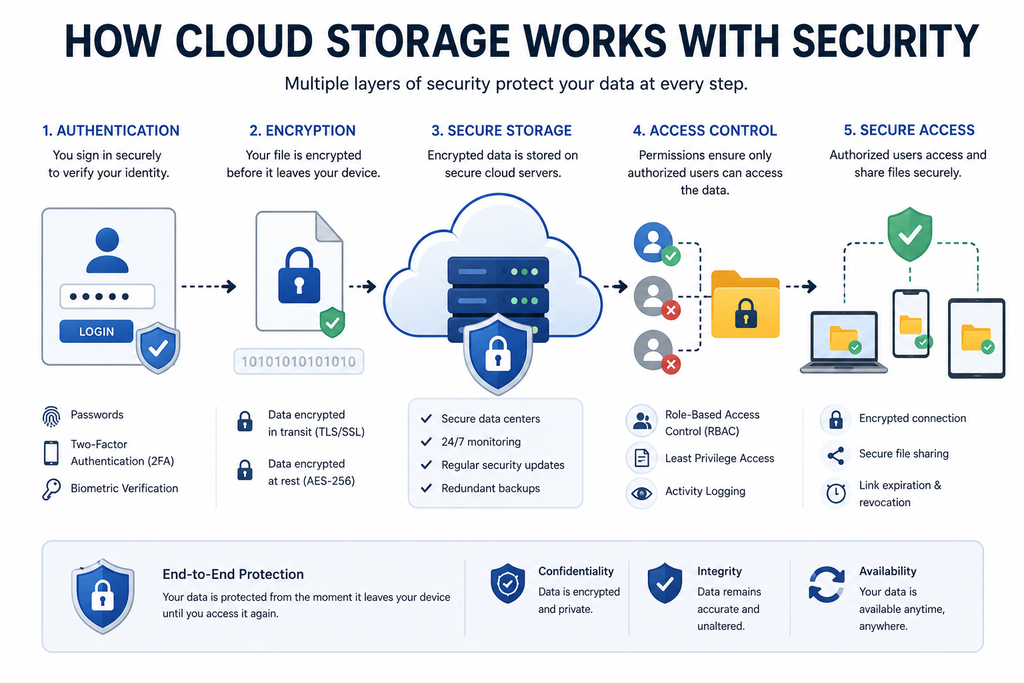
Cloud providers use different security mechanisms to protect data during storage and access. Encryption is one of the most common protections.
Google Cloud states that Cloud Storage uses server-side encryption by default, while Microsoft Azure Storage also automatically encrypts stored data. Azure documents the use of AES-based encryption for data at rest.
Other security controls can include:
- Passwords and authentication
- Multi-factor authentication
- Access permissions
- Encryption keys
- Network controls
- Audit logs
- Versioning
- Retention policies
Security is therefore an essential part of how cloud storage works, not an optional feature added after your data has already been stored.
Is Cloud Storage Safe?
Cloud storage can be highly secure, but no storage method should be treated as automatically risk-free.
Security depends on both the cloud provider and the customer’s account practices.
For example, Google Cloud supports access controls, authentication, encryption, soft delete, versioning, and other controls.
Users should still protect their accounts with strong passwords and multi-factor authentication. Sharing sensitive files publicly or giving unnecessary permissions can create avoidable risks.
The best approach is to understand how cloud storage works and then configure the service according to the sensitivity of your data.
Benefits of Cloud Storage
Cloud storage has several practical advantages.
Access From Different Devices
You can access your data from multiple devices as long as the service supports the device and you have appropriate access.
Reduced Dependence on Local Hardware
If your laptop or phone is damaged, files stored separately in the cloud may remain available.
Scalability
Cloud storage can support large and growing datasets without requiring you to personally purchase and install additional physical storage hardware.
Collaboration
Cloud services can make it easier for authorized users to share and work with files.
Durability and Redundancy
Cloud providers can use redundancy mechanisms to protect stored information against certain hardware, network, power, or regional failures. Azure, for example, provides multiple redundancy models for different availability requirements.
These benefits become clearer once you understand how cloud storage works as a managed service rather than simply thinking of it as an online hard drive.
Disadvantages of Cloud Storage
Cloud storage also has limitations.
Internet Dependence
Many cloud services require an internet connection for full access, especially when files have not been stored locally for offline use.
Recurring Costs
Large amounts of storage can require a paid subscription or usage-based billing.
Privacy Considerations
You are trusting a third-party provider to operate the infrastructure that stores your information. The provider’s policies, account controls, encryption choices, and legal obligations can therefore matter.
Account Risks
If someone gains unauthorized access to your account, they may potentially access or delete your cloud data.
Data Transfer Limits
Uploading and downloading large files can consume significant bandwidth and may take time depending on your connection.
Knowing how cloud storage works allows you to weigh these trade-offs instead of assuming cloud storage is always better than local storage.
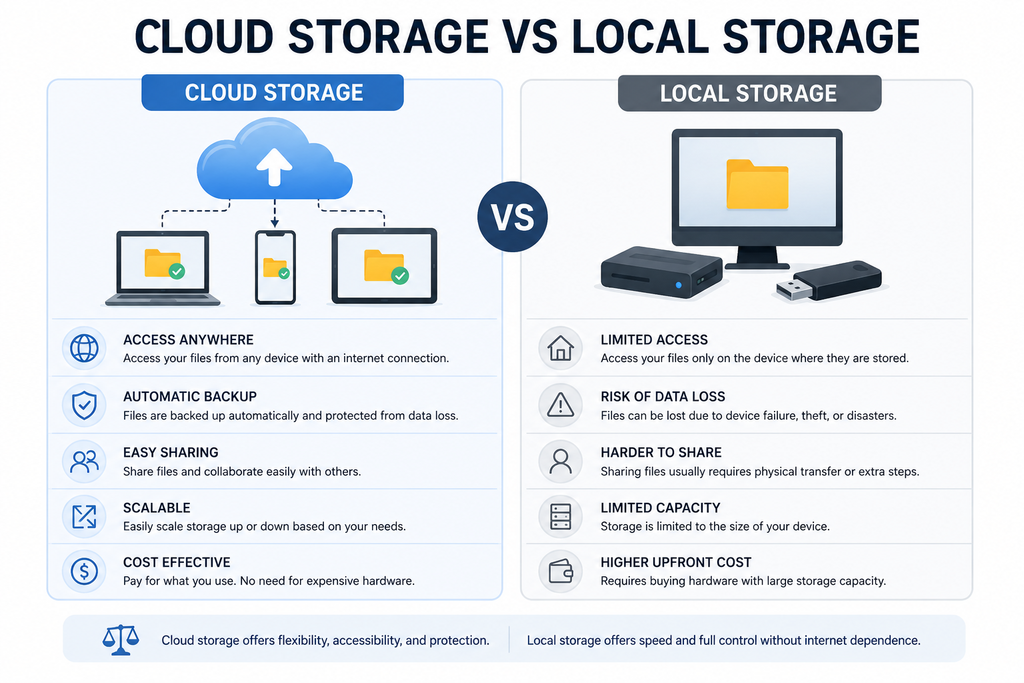
Cloud Storage vs Local Storage
| Feature | Cloud Storage | Local Storage |
|---|---|---|
| Physical location | Remote provider infrastructure | Your own device or drive |
| Internet access | Usually important | Not always required |
| Scalability | High | Limited by hardware |
| Maintenance | Managed largely by provider | Managed by user |
| Backup potential | High when configured properly | Depends on your backup strategy |
| Access across devices | Often easy | Usually more limited |
| Account dependency | Yes | Usually lower |
| Hardware failure risk | Reduced for your local device | Directly affects stored data |
The best solution is often not choosing only one. A combination of local storage and properly configured cloud backups can provide additional resilience.
Common Mistakes to Avoid
When learning how cloud storage works, beginners often make several mistakes.
Relying on One Copy
Cloud storage should not automatically be considered your only backup. Important information may benefit from having more than one independent copy.
Ignoring Account Security
A cloud account with weak authentication can put stored files at risk.
Sharing Files Too Broadly
Check sharing permissions before sending sensitive documents.
Forgetting Subscription Limits
Free and paid plans can have storage limits, retention rules, or other restrictions.
Assuming Deleted Files Are Gone Immediately
Some cloud services provide recovery mechanisms such as soft delete or versioning. Google Cloud, for example, supports soft delete and Object Versioning features.
Real-World Example of How Cloud Storage Works
Imagine you take a 500 MB video on your smartphone.
You upload it to a cloud storage service.
First, your phone sends the video through the internet. The cloud platform receives the data and stores it within its storage infrastructure. The file can be represented as an object with metadata and an identifier. Depending on the provider and configuration, redundancy mechanisms may create additional copies or replicas.
Later, you open your account from a laptop. The laptop requests the video, the service checks your access permissions, locates the stored object, and sends the data back to your device.
That simple example demonstrates how cloud storage works from upload to retrieval.
Best Practices for Using Cloud Storage
To get the most from cloud storage:
- Enable multi-factor authentication whenever available.
- Use a strong, unique password for your account.
- Review sharing permissions regularly.
- Keep a separate backup of highly important files when appropriate.
- Understand the provider’s storage limits and deletion policies.
- Use versioning or recovery features when they fit your needs.
- Avoid uploading sensitive information without understanding the provider’s security controls.
- Organize files using clear folders, naming systems, and metadata.
These practices make your cloud setup safer and easier to manage.
Frequently Asked Questions
What is cloud storage?
Cloud storage is a service that lets users store digital information on remote infrastructure operated by a cloud provider and access it through networks such as the internet.
How cloud storage works with photos?
Photos are uploaded from a phone or computer to the provider’s servers. The service stores the files and allows authorized devices or applications to access them later.
Is cloud storage the same as a backup?
No. Cloud storage is the place where data can be stored, while a backup is a separate copy designed for recovery. Cloud storage can be part of a backup strategy.
Does cloud storage need the internet?
Internet access is generally required to upload or download cloud data, although some applications can keep synchronized copies available offline.
Is cloud storage secure?
Major providers use security controls such as authentication, permissions, and encryption. However, users still need to secure their accounts and manage sharing carefully.
Can cloud storage fail?
Cloud services can experience outages or other problems. Redundancy can improve resilience, but it does not mean every possible failure is impossible. Azure’s documentation, for example, explains different redundancy approaches and their trade-offs.
Is cloud storage better than a hard drive?
Neither is automatically better. Cloud storage offers remote access, scalability, and managed infrastructure, while local drives provide direct physical access and can work without an internet connection. Many users benefit from using both.
Security”
Alt Text: Cloud storage security diagram showing authentication encryption permissions and access controls
Final Thoughts
Understanding how cloud storage works makes it easier to choose the right way to store, protect, and access your digital information.
At its core, cloud storage moves data from your local device to managed remote infrastructure. The provider then handles storage, access, security mechanisms, and—in many configurations—redundancy and recovery features.
The technology is more sophisticated than simply placing files on an online hard drive. Object-based storage, encryption, authentication, replication, versioning, and access controls all contribute to the modern cloud storage experience.
The most important lesson is that cloud storage is a tool, not a complete data-protection strategy by itself. Use strong account security, understand sharing permissions, keep important backups, and learn the storage and recovery features offered by your provider.
Once you understand how cloud storage works, you can make much more informed decisions about where your files live, how they are protected, and how you can recover them when something goes wrong.